Login
Objective: To access to the SDP APP
Step 1
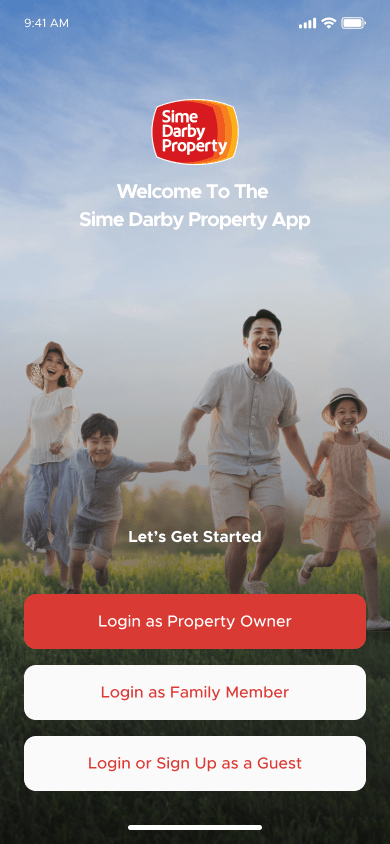
User open the app to proceed access the app
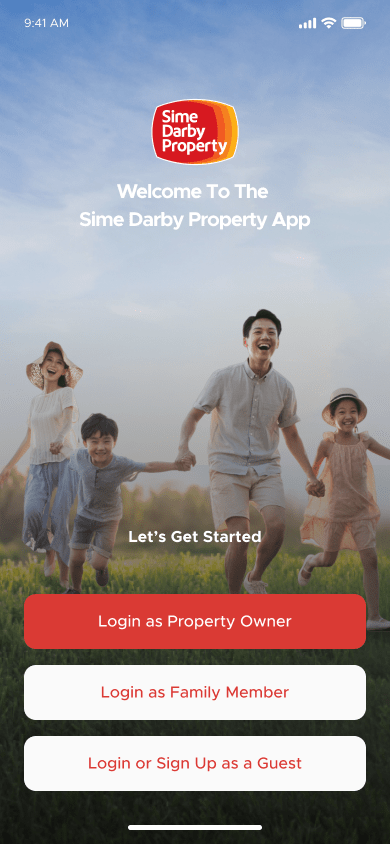
User shall be viewing this landing page after open the app for the first time.
Step 2
Click “Login as Property Owner” to login as PRIME Member
a. User will redirect to the PRIME login
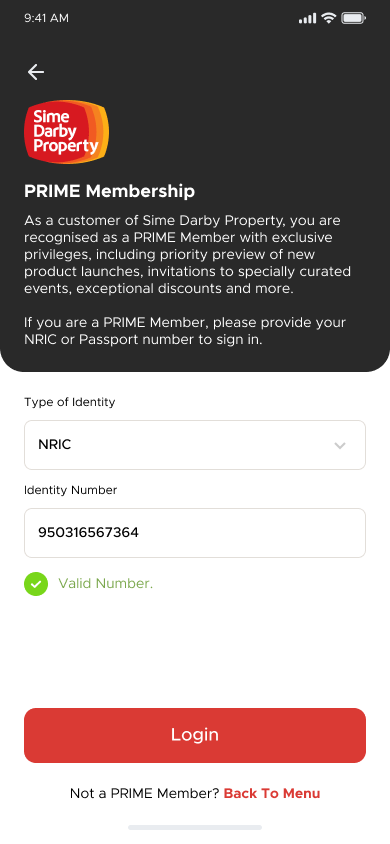
User shall key in the PRIME details
b. After click “Login”, user will go to verification process.
c. User need to key in the SMS OTP, or user also can choose to verify with email by key in the email address
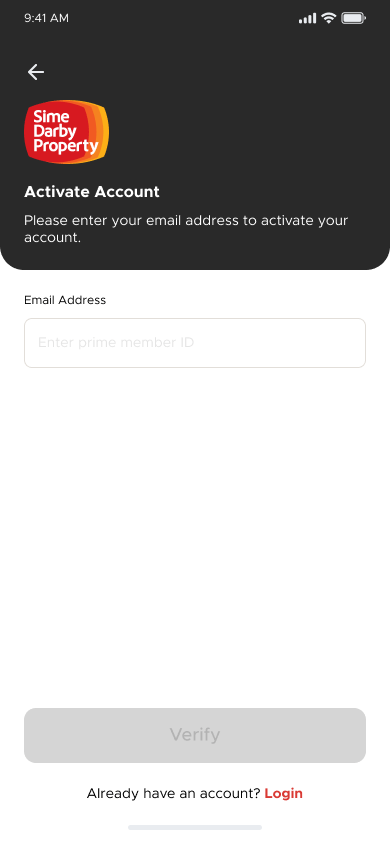
d. After success, user will go to homepage accordingly
Step 3
Click “Login as Family Member” to login activate as dependent
Step 4
Click “Login or Sign Up as a Guest” to login as Public user or to login with social media
User shall redirect to the login page. Fill in the login details and click [login]
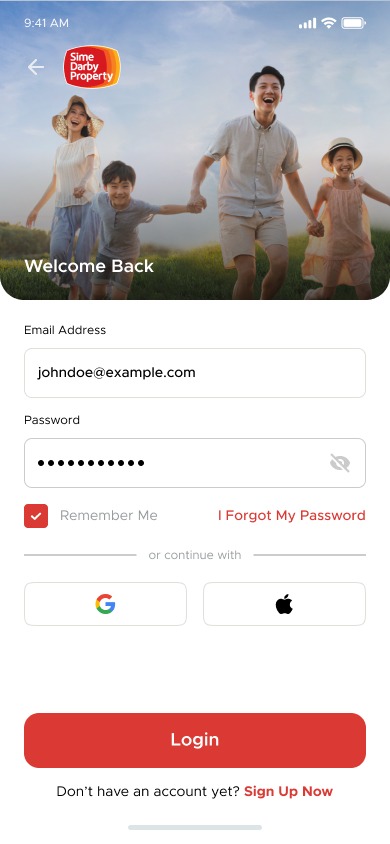
user shall redirect login to the SDP App.
Remember Me
Objective: To remember user credentials after logout
Step 1
At the login page, users shall click [Remember Me] button.
a. User shall click the [Remember Me] button after filling in the Email and Password.
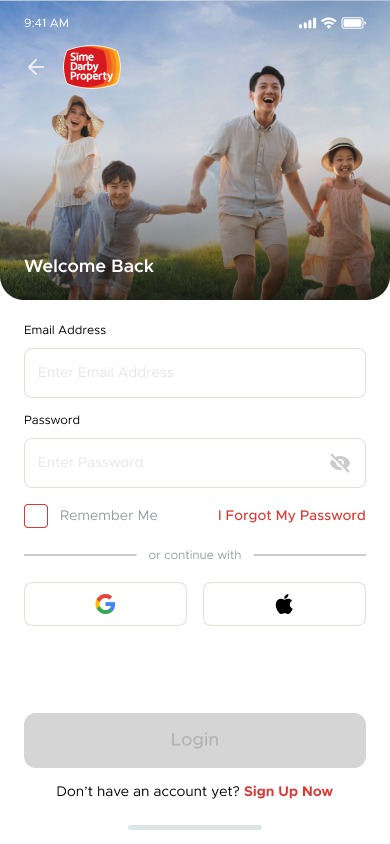
b. The Email will be auto fill based on user’s login credentials.
Forgot and Reset Password
Objective: To allow user to reset the password if forgotten
Step 1
Users shall click [I forgot my password] button
a. User clicked [Forgot Password] button.
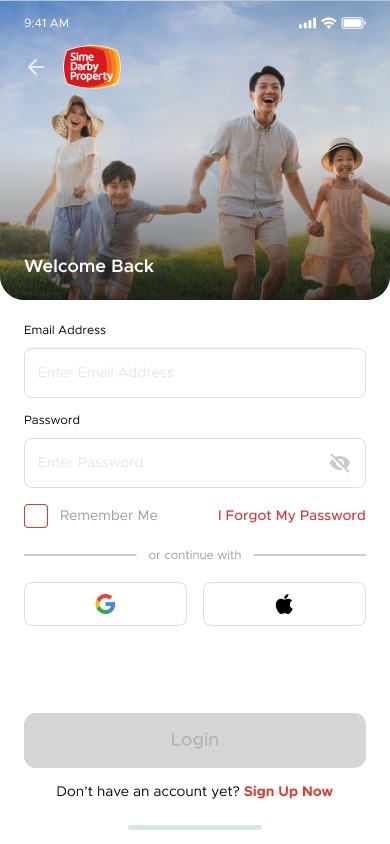
b. User will be redirected to the Forgot Password page accordingly.
c. User shall be able to fill in their registered email address.
d. After filled in the email address, the user clicks [Next] button.
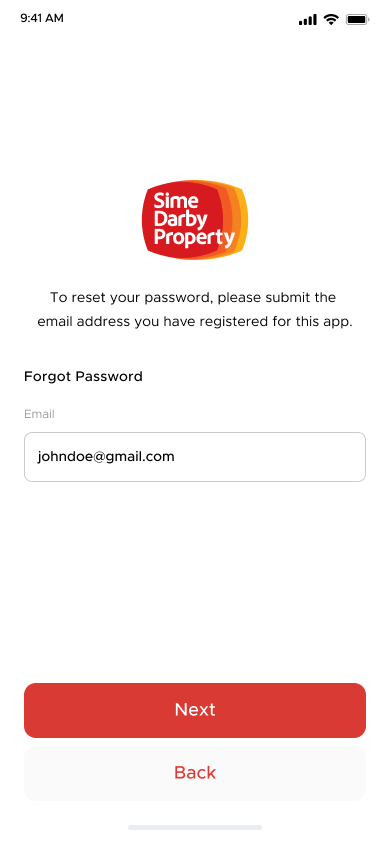
e. Once user clicked [Next] button, the user will be able to view the screen that inform user regarding the resetting password’s link
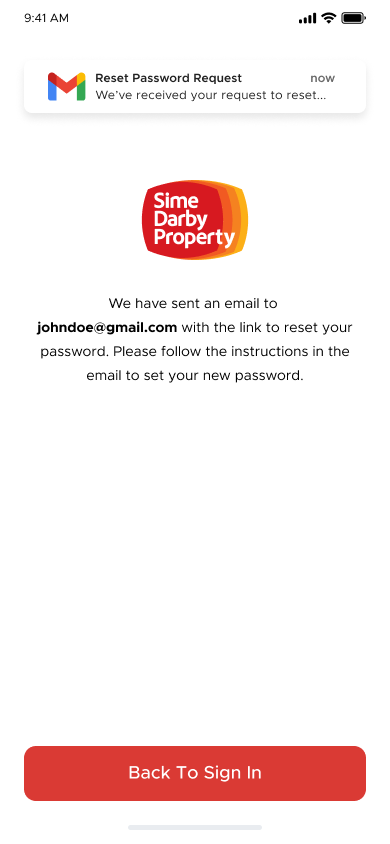
f. If the user clicked [Back to Login] button, the user will be redirected to the login page again.
g. At the user’s inbox mail, the user shall be able to receive and view the Password Reset’s Email accordingly.
h. The user clicks at [Reset Your Password] inside the email’s content.
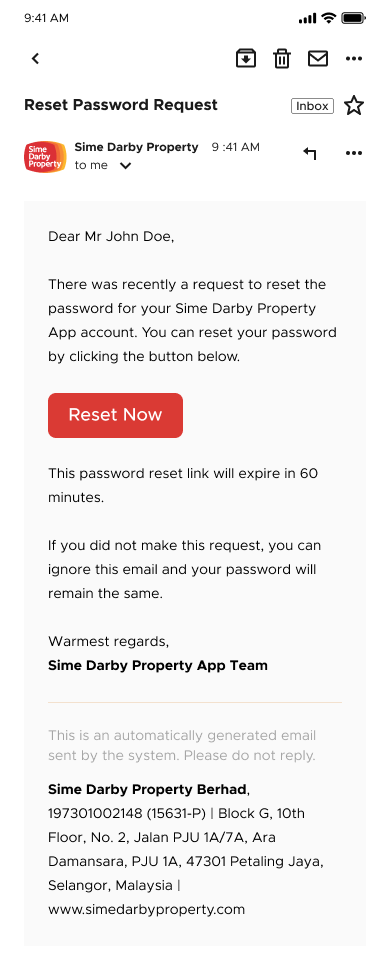
i. The User will be redirected to the Reset Password’s Page accordingly.
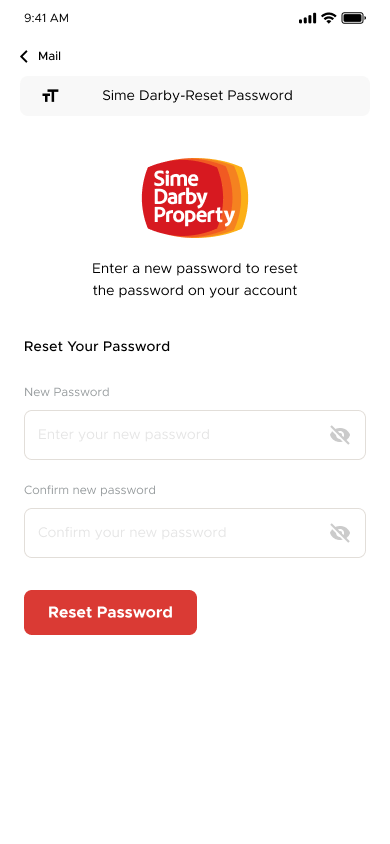
j. User shall fill in the registered email and the new password (Password and Confirm Password).
k. After filling in all required details, user shall click [Reset Password] button
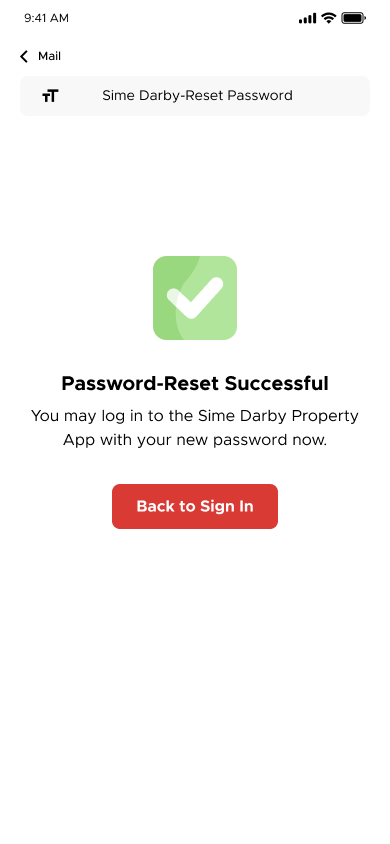
l. The user will be able to view the successful message’s screen accordingly and manage to login with new setup password.