
Public access module
Module that accessible to Public and PRIME Member
New Property Search
Objective: To view new properties page
Step 1
From the homepage, under the Quick Access menu, click the “New Property Search”
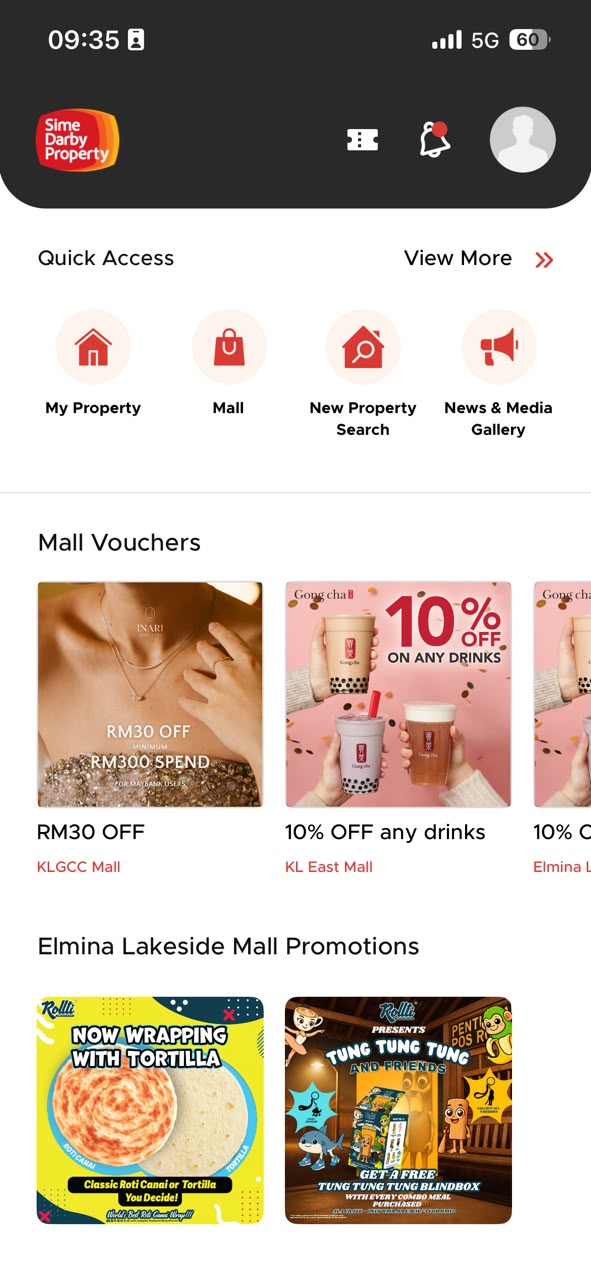
a. User shall redirected to the new properties page
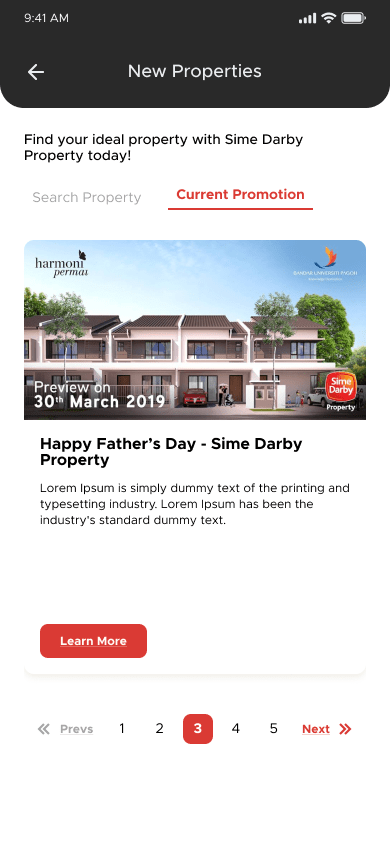
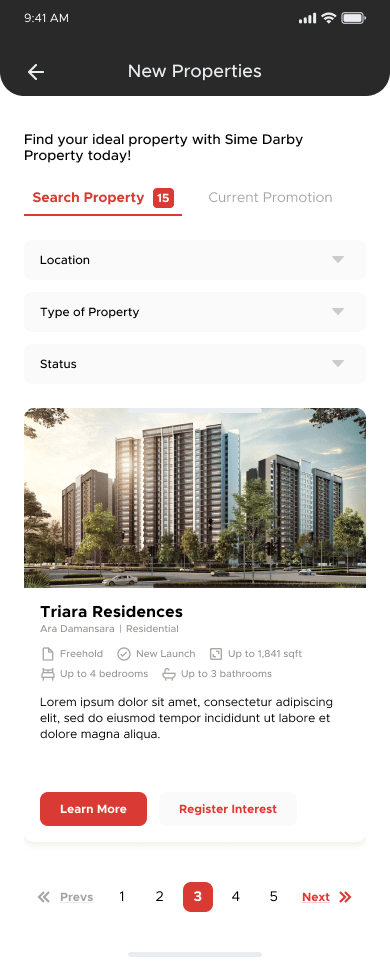
b. There are two tabs under this new properties page.
- Search property – Display new properties available
- Current Promotion – Display promotion available
Step 2
Under “Search Property” tab, user can filter based on “Location”
a. User shall click the filter location
b. User shall be able to choose the list of location filter
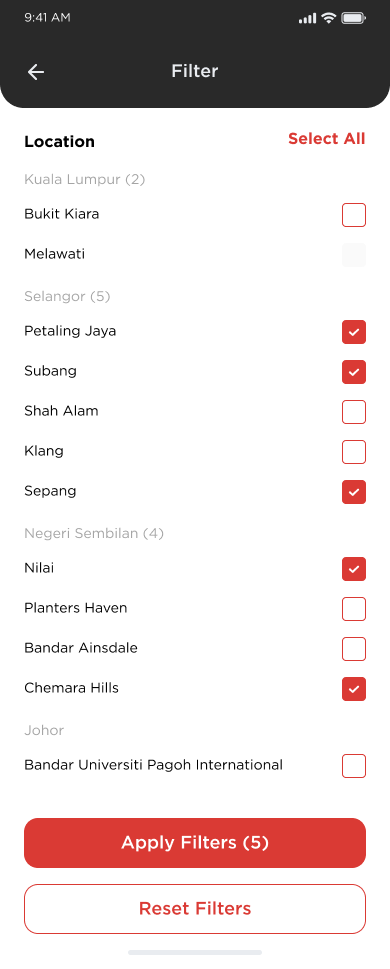
c. Click [Apply Filters] button to apply the location filter
- New properties list will be appearing based on the filter
d. Click [Reset Filters] button to reset the filtering
Under “Search Property” tab, user can filter based on “Type of Property”
a. User shall click the filter Type of Property
b. User shall be able to choose the list of Type of Property filter
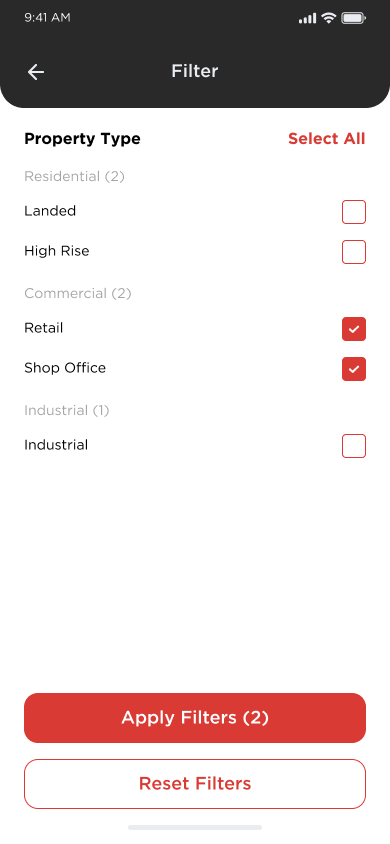
c. Click [Apply Filters] button to apply the Type of Property filter
- New properties list will be appearing based on the filter
d. Click [Reset Filters] button to reset the ////
Under “Search Property” tab, user can filter based on “Status”
a. User shall click the filter Status
b. User shall be able to choose the list of Status filter
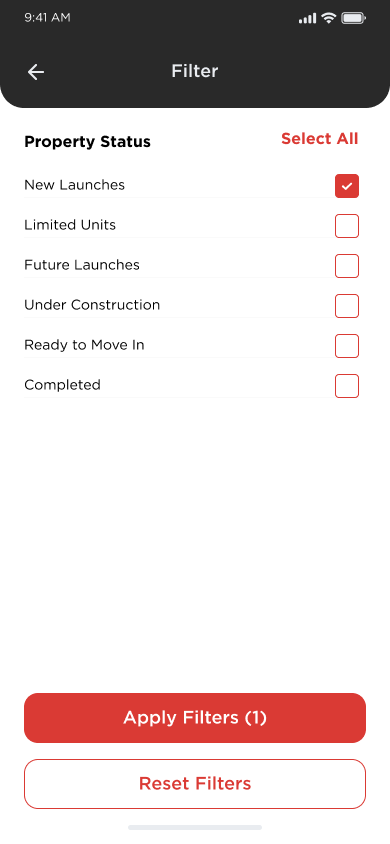
c. Click [Apply Filters] button to apply the Status filter
- New properties list will be appearing based on the filt
d. Click [Reset Filters] button to reset the filtering
Step 3
To view more details of the property, user shall click “Learn More”
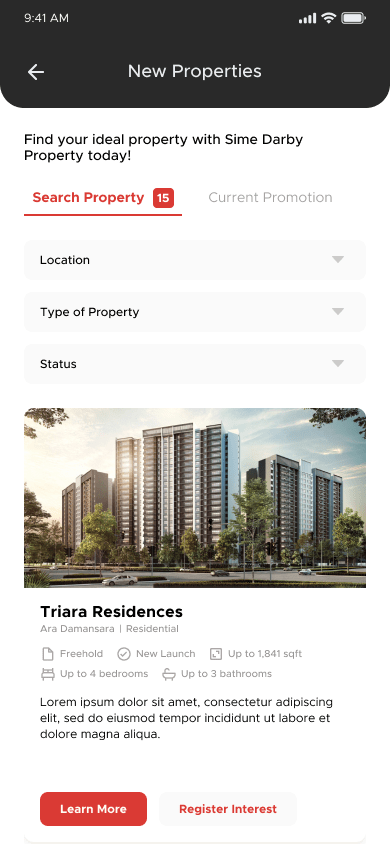

User will be redirected to the website of the property
Register Interest for Property
Objective: To register interest for the property
Step 1
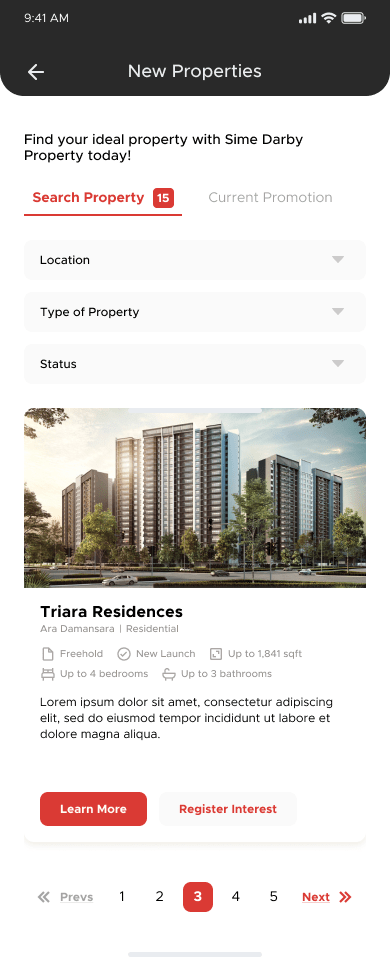
To register interest of the property, user shall click “Register Interest” button
a. User will be redirected to the register interest page accordingly
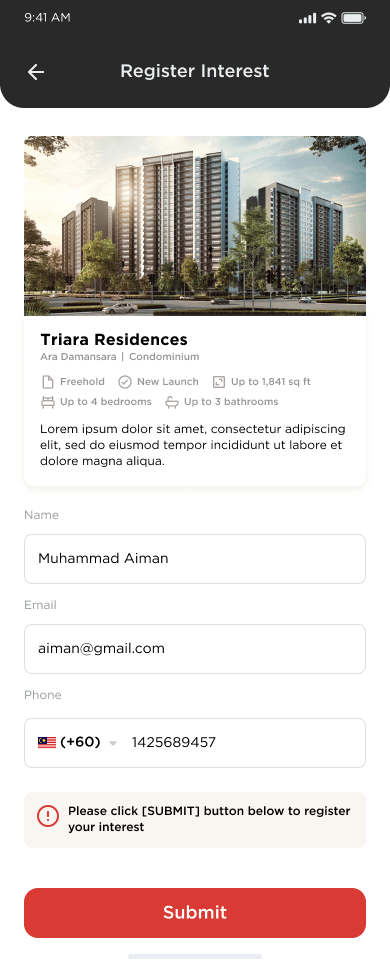
b. User shall fill in the details accordingly
c. Click [Submit] button to proceed with the register interest
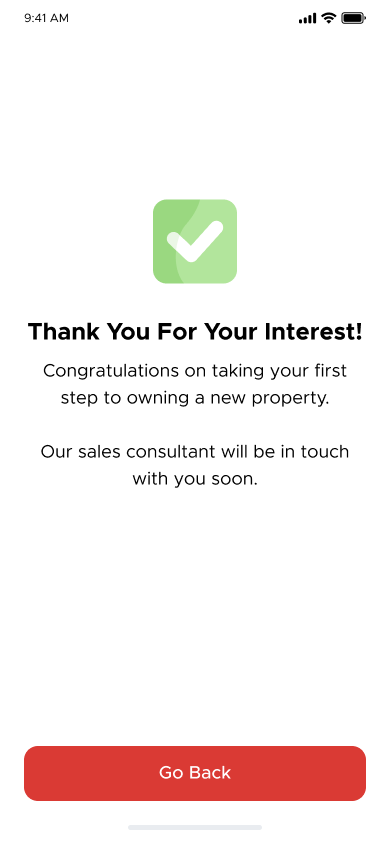
d. The successful page will appear after user click [Submit] button
Current Promotion
Objective: To view the current promotion
Step 1.
From the New Properties page, Click [Current Promotion] tab beside the Search Property tab
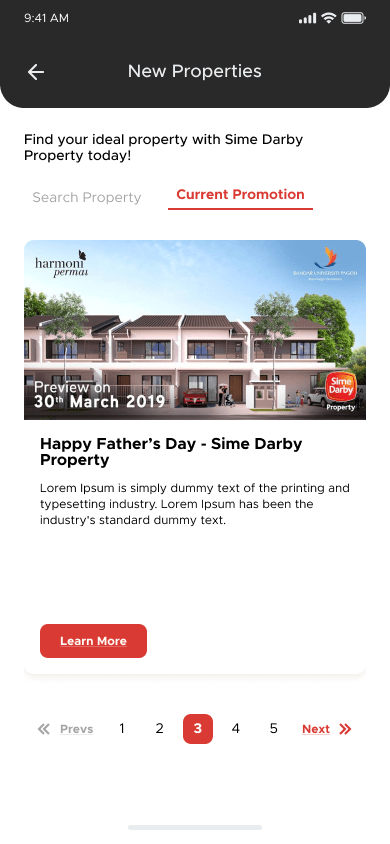
a. User shall redirect to the current promotion page
b. Click [Learn More] button to view promotion details
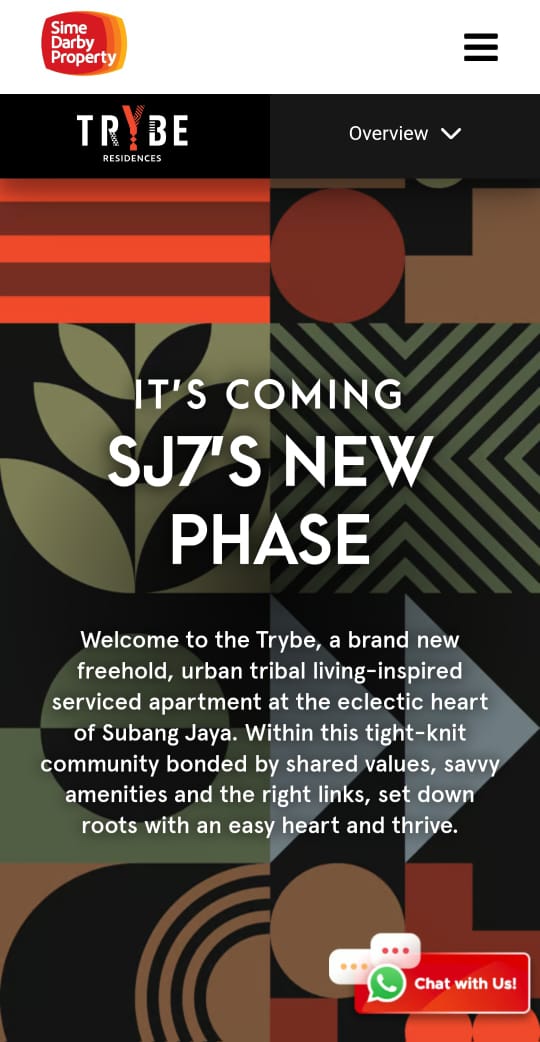
c. User shall redirect to the promotion website
News and media gallery
Objective: To view news and media gallery page
Step 1
a. From the homepage, under Quick Access menu, click the “News & Media Gallery”
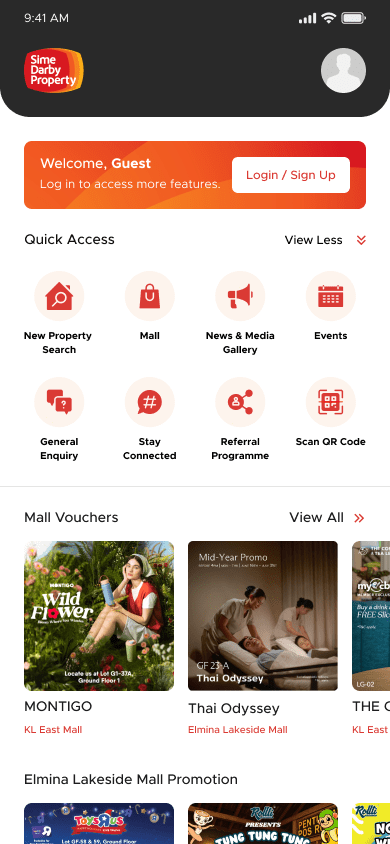
User shall redirected to the News & Media Gallery page
b. There are three tabs under this News & Media Gallery page.
- News
- Media
- Video
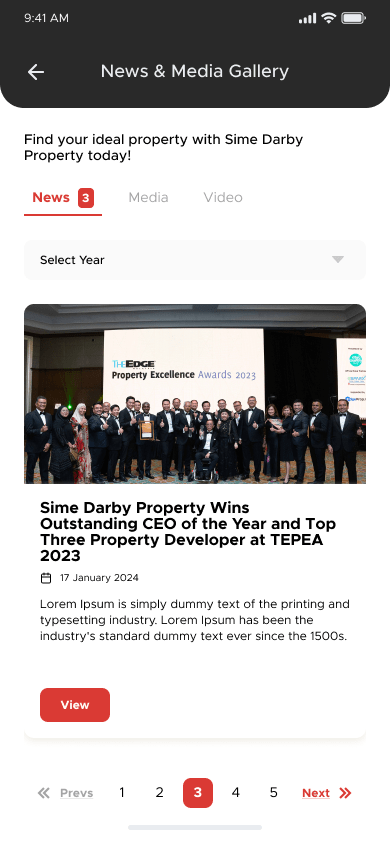
Step 2
News
a. From news tab, user can click the “Select Year” to filer the news
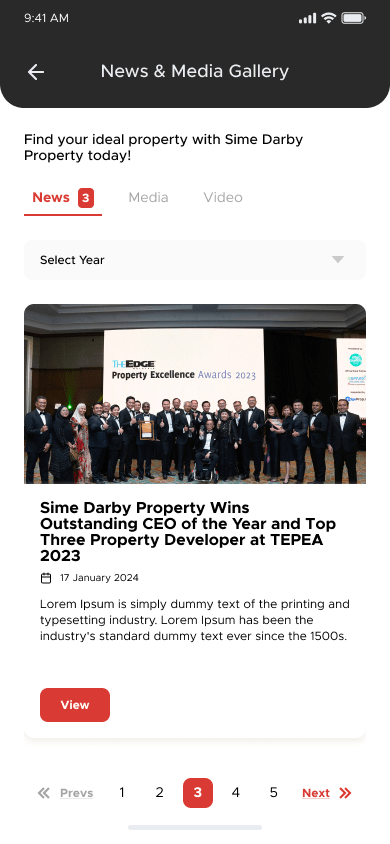
b. Click [Apply Filters] button to apply the filter
- News list will be appearing based on the filter
c. Click [Reset Filters] button to reset the filtering
To view details of news
a. From the news list, click [View] to view the details
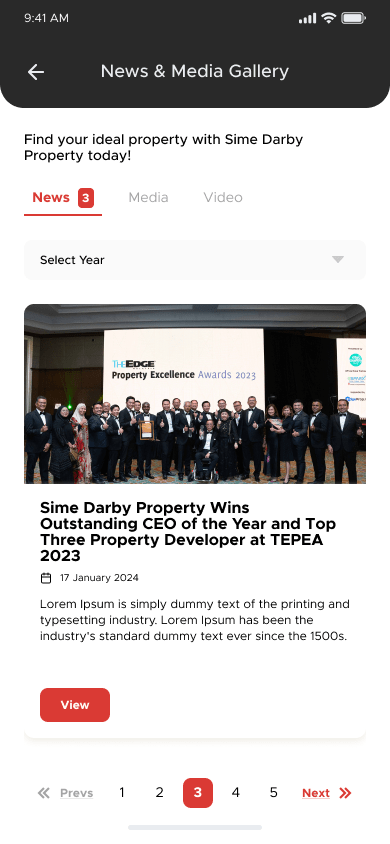

b. User will be redirected to the news details page
Step 3
Click [Media] tab beside the News tab
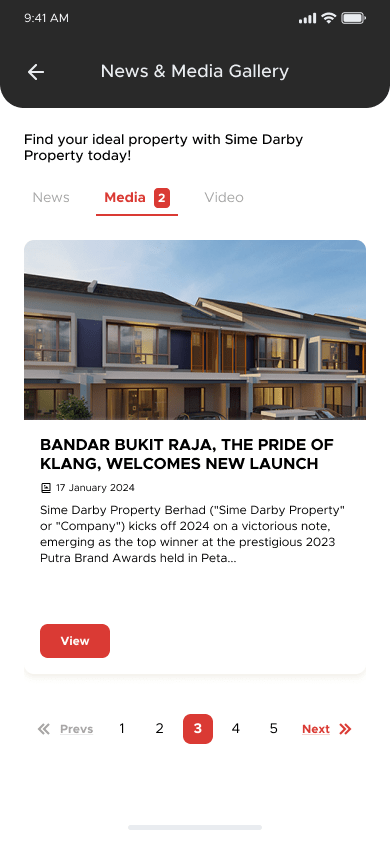
a. User can view the media of the property, click [View] to view more photos
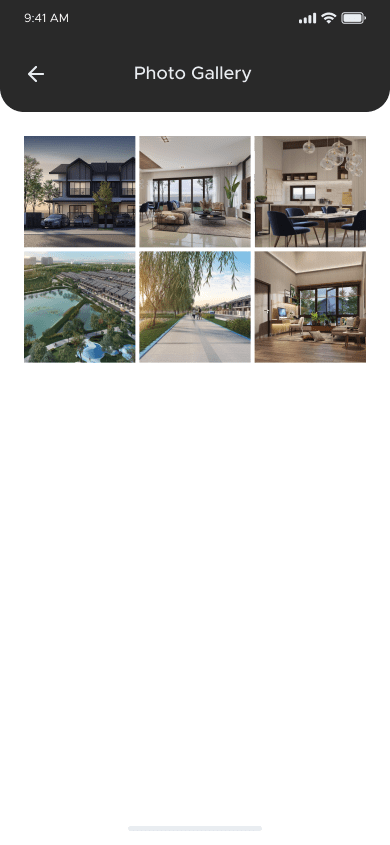
b. User redirect to the photo gallery page, User can click the photo to view in large size
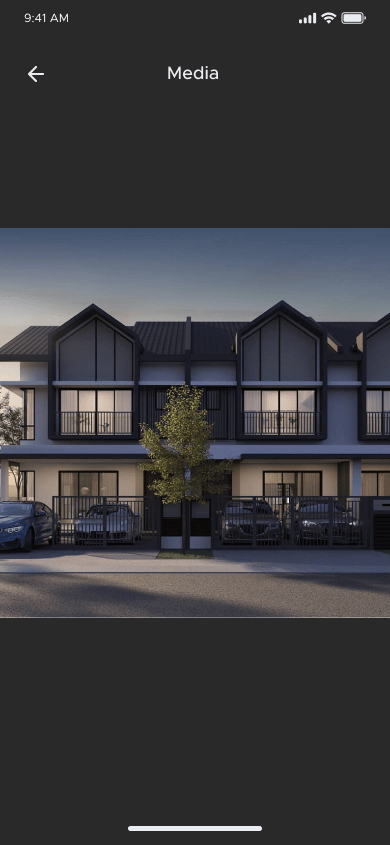
c. User will be viewing the photo in large size
Click [Video] beside the Media tab
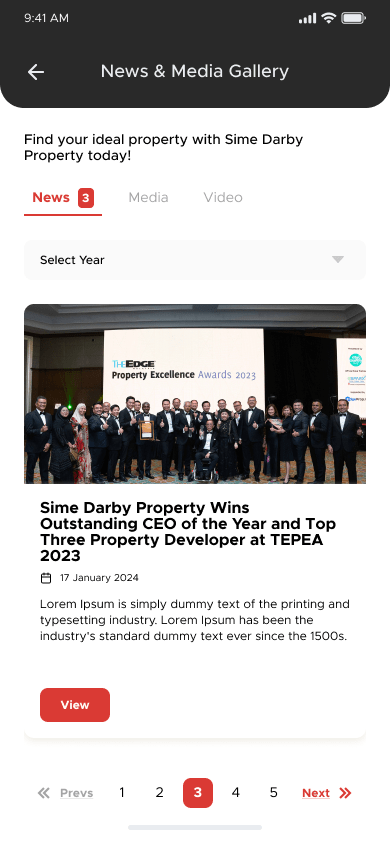
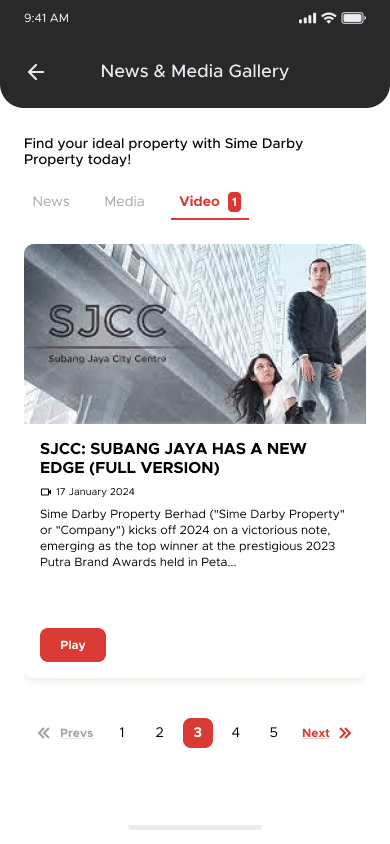
a. User redirect to the Video page
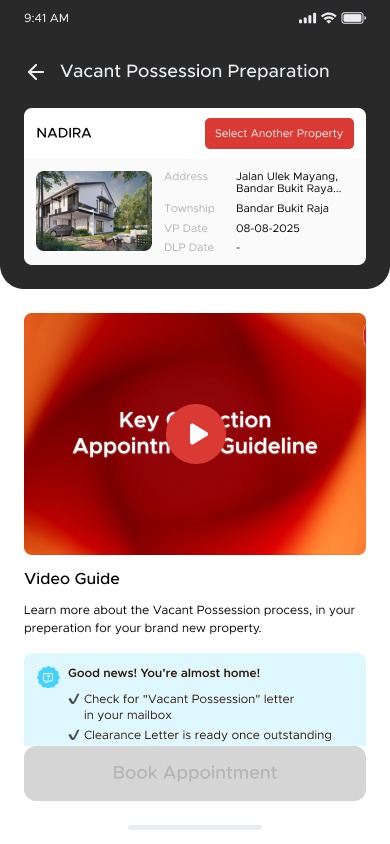
b. Click [Play] to view the video and user redirect to the youtube
General Enquiry
Objective: To view and submit general enquiry.
Step 1
From Homepage, at the Quick Access, click “View More” and shall Click “General Enquiry”
i) Public ii)PRIME
User redirect to the General Enquiry page and shall be able to view the list of general enquiries
Step 2
Submit general enquiry
a. To submit new general enquiry, click [Submit New Enquiry]
b. User will redirect to the submit new enquiry page
c. Choose the Type of Enquiry and put the comments, and Click [Submit] button to proceed
d. Successful submit general enquiry page will appear after user click [Submit]
e. click [Back To Homepage] to go homepage
f. click [View Enquiries List] to view the list of enquiries
Step 3
View details of general enquiry
a. Click on the specific of the submitted general enquiry to view details
b. User shall be able to view the details of submitted general enquiry
Step 4
Filter the enquiries
a. User can filter by Type of Enquiry
Stay Connected
Objective: To view the social media page
Step 1
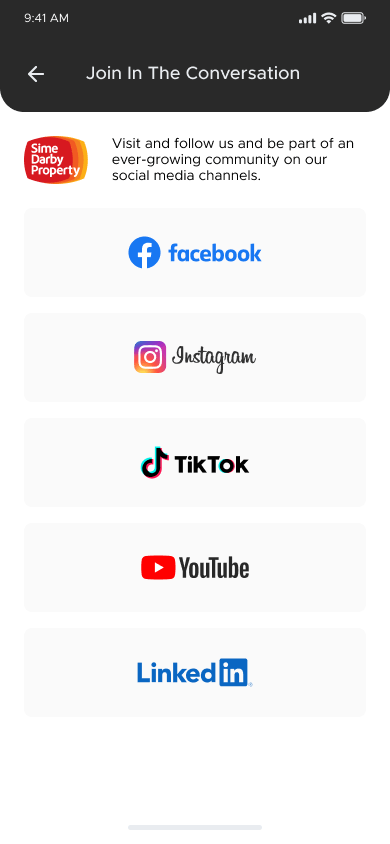
From Homepage, at the Quick Access, click “View More” and shall Click “Stay Connected”
a. User will redirect to the Join In Conversation page. User can click the social media and will redirect to the that social media page accordingly
Referral Program
Objective: User to access referral program
Step 1
From Homepage, at the Quick Access, click “View More” and shall Click “Referral Programme”
a. User will be redirected to the Referral Programme page, to fill in details.
b. Choose referrer type to fill in different referrer details
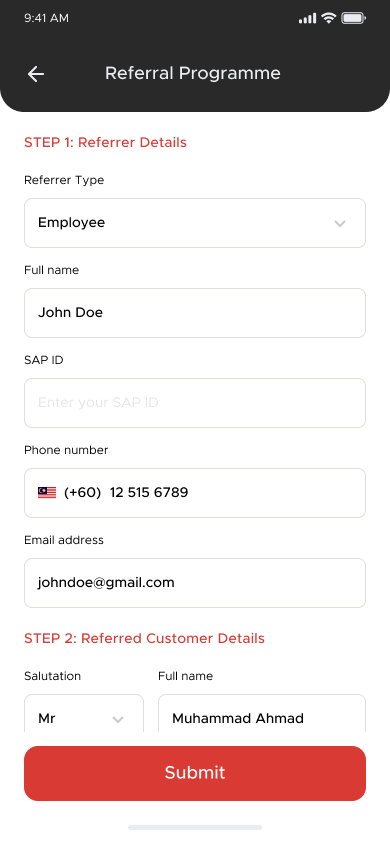
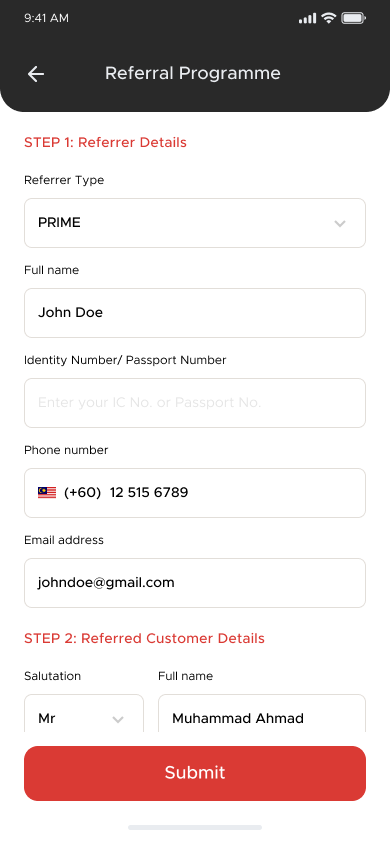
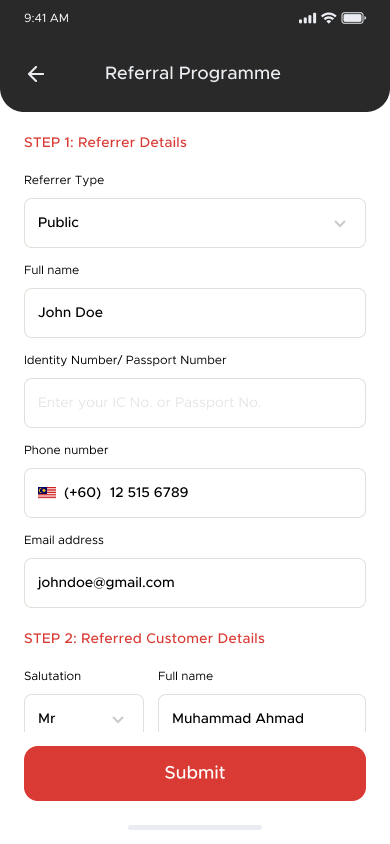
c. After filling all the info, click on “Submit” button
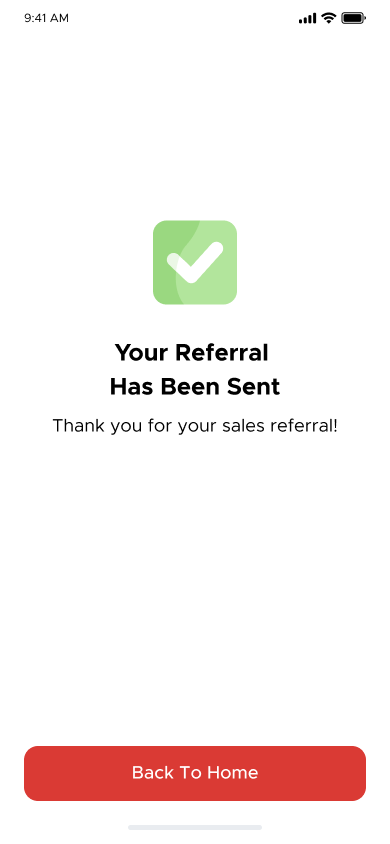
d. The referral programme will be submitted successfully, and user will be able to view a success message. Click on “Back To Homepage” button to return to homepage.
NPS form
Objective: To submit NPS form
Step 1
The NPS form will be send out to user via app notification, send out 3 hours after making the registration of attendance
a. User shall click the notification and click the link provided. user will redirect to the form accordingly
Step 2
User also can scan the NPS QR code at the event of provided
a. From Homepage, at the Quick Access, click “View More” and shall Click “Scan QR Code”
b. At the Scan QR code, user shall scan the NPS QR code
c. User shall redirect to the NPS form accordingly
Notification
Objective: User received notification
From user’s device, user will receive notification
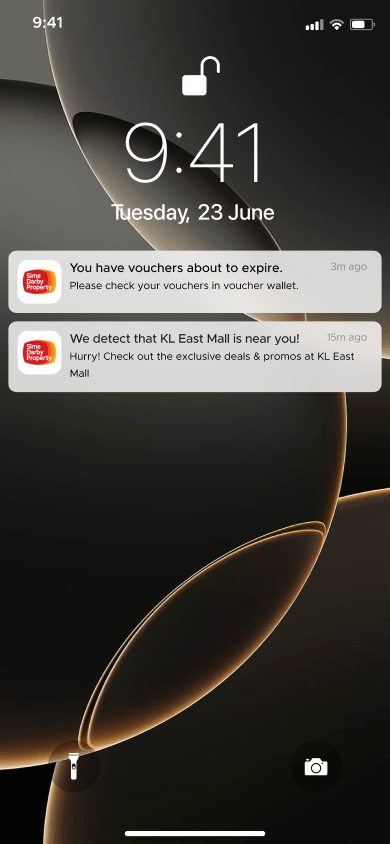
Click on the notification to open the application and redirect to homepage
Step 2
From homepage, click on the “Bell” icon
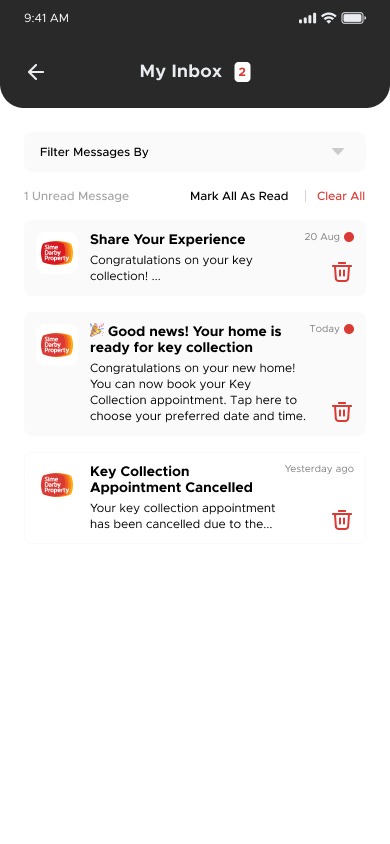
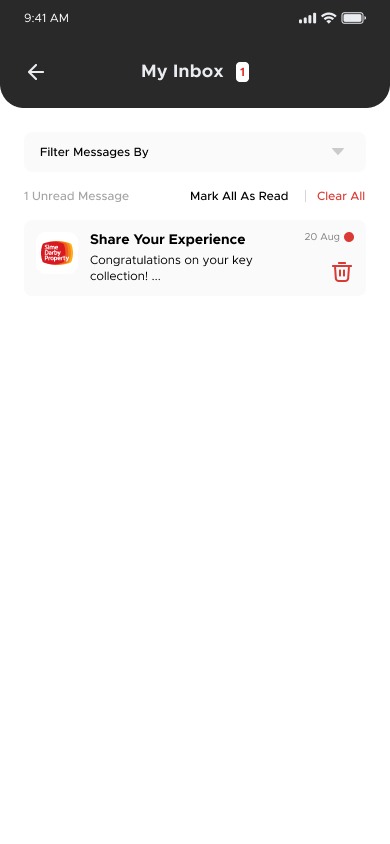
User will be redirected to My Inbox page, with listing of notification displayed.
a. Click on the new notification to view the notification details, or click on the trash can icon button to remove the notification.
Step 3
Click on the notification
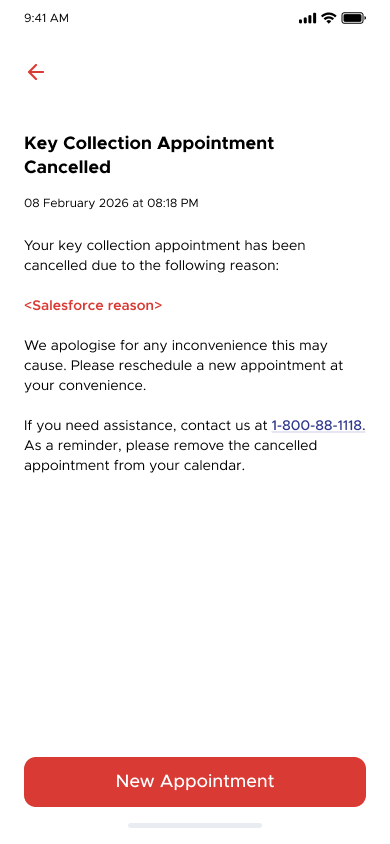
User will be redirected to the notification details page, with details of the notification displayed.
Step 4
Click on the trash can icon button of the notification
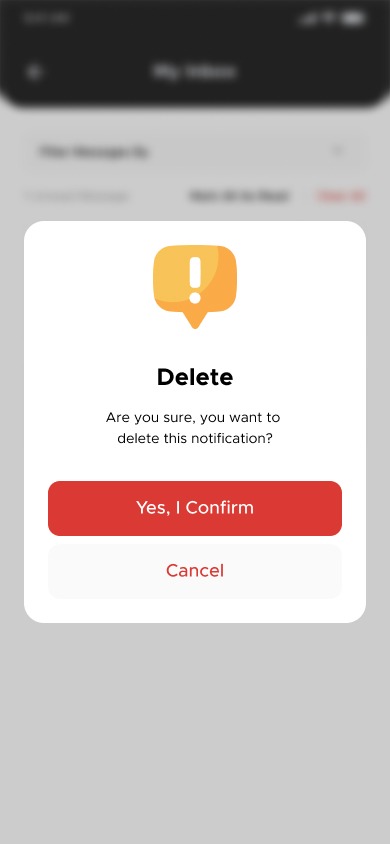
A confirmation box will pop up to user, click on “Yes, I Confirm” button to confirm the notification removal, or “Cancel” button to cancel the removal.
My Profile
Objective: To access My Account Page
Step 1
User click “Profile Picture” at the homepage
a. From the homepage, click the [Profile Picture] at the top to go to profile page
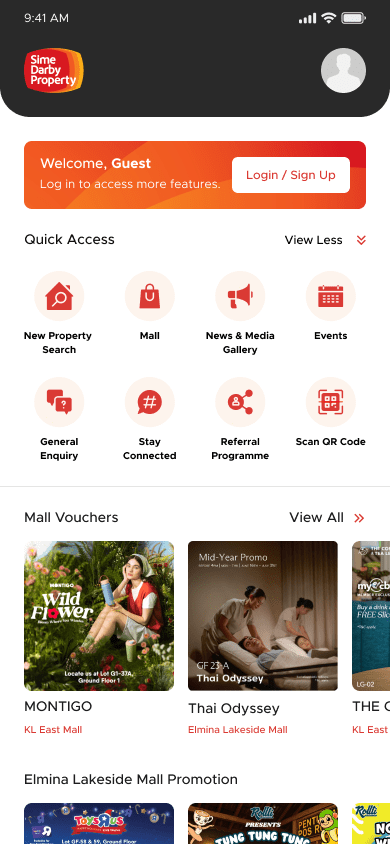
b.The User will be able to redirect and view My Profile page accordingly.
- Public User
- Prime User
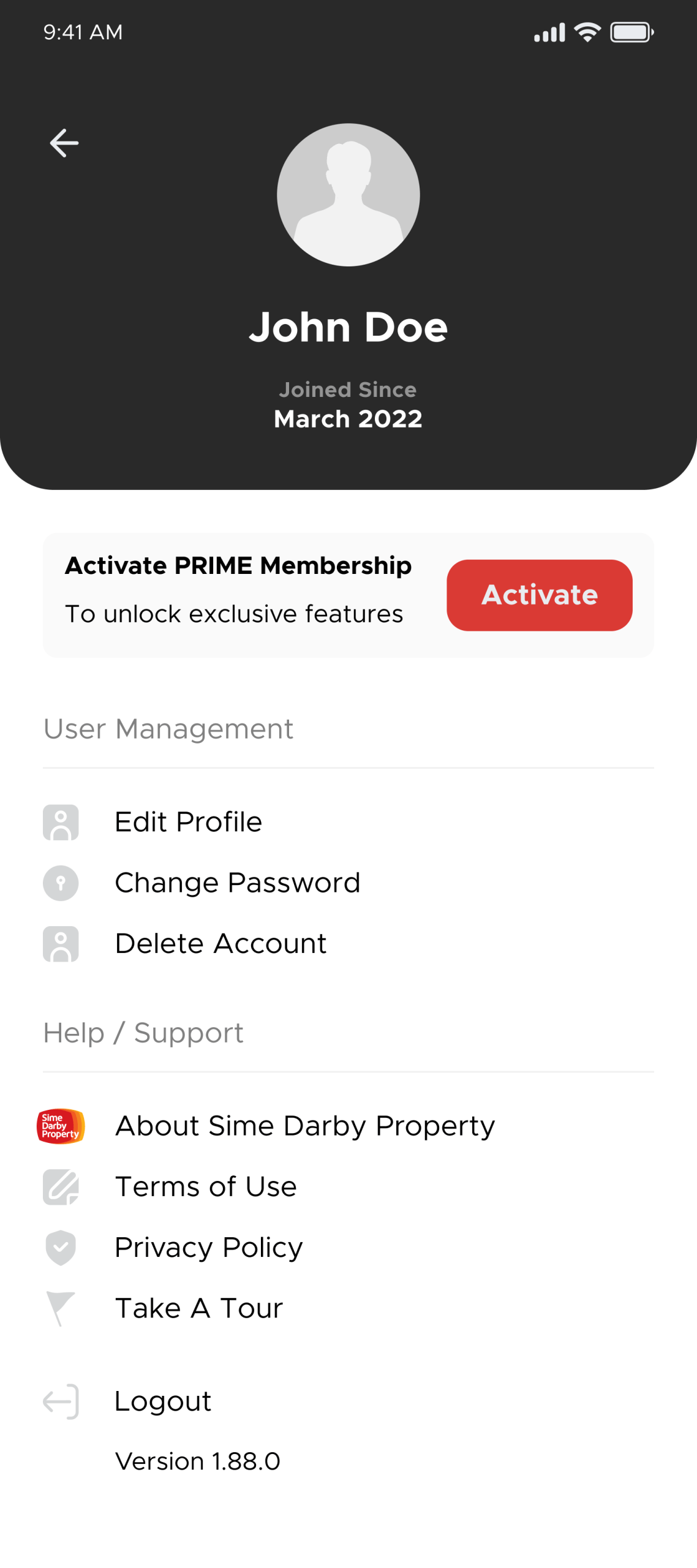
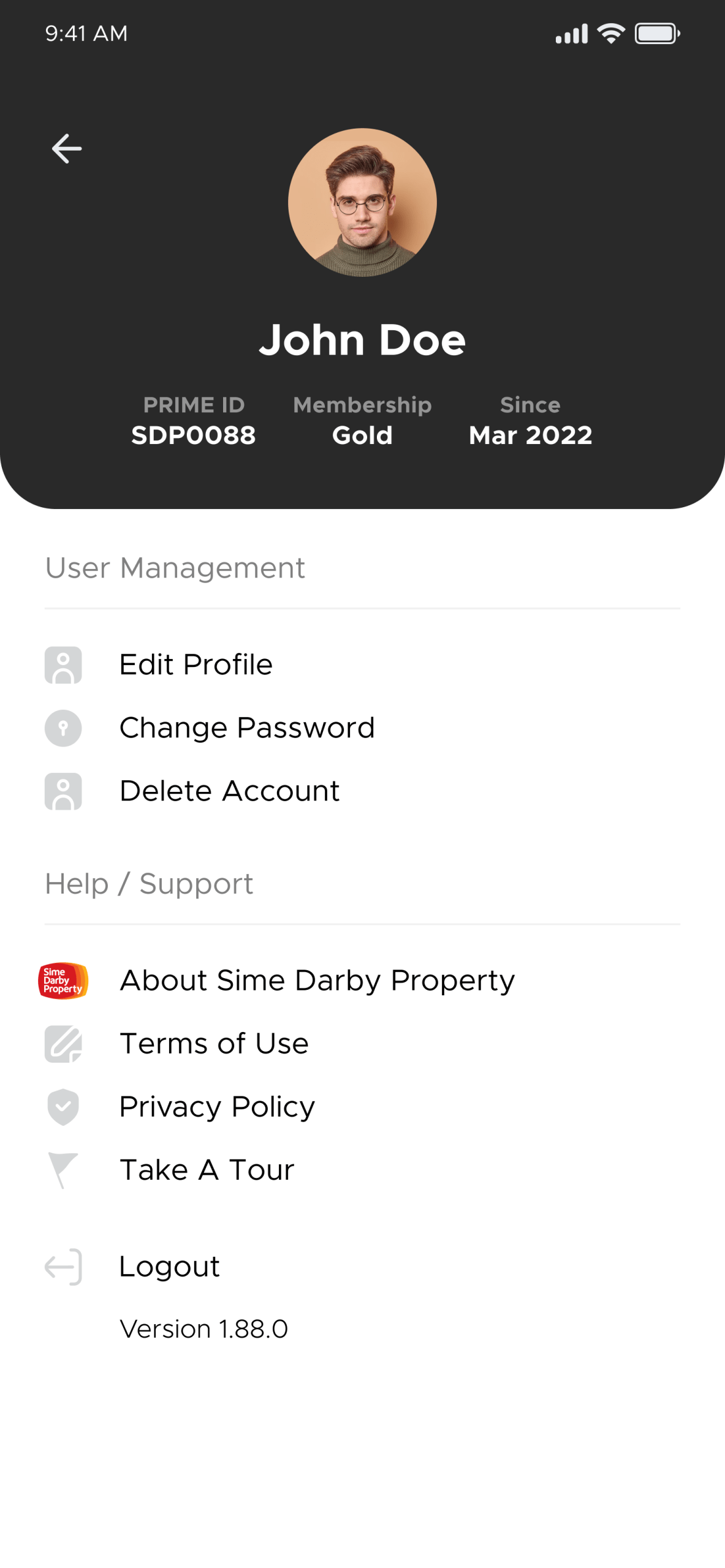
User Management
Objective: To access the user management features
Step 1
To edit the profile details
a. User clicks “Edit Profile” from the User management menu
b. The User shall be able to update their profile information at the provided fields. Once updated, the User shall be able to click the [Save Changes] button to save the update.
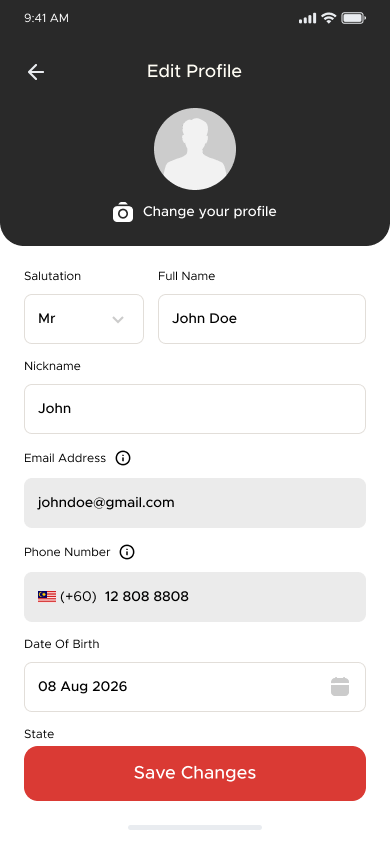
c. The updated details will reflect accordingly.
Step 2
To change password (applicable for PRIME User)
a. User clicks [Change Password] from the User management menu
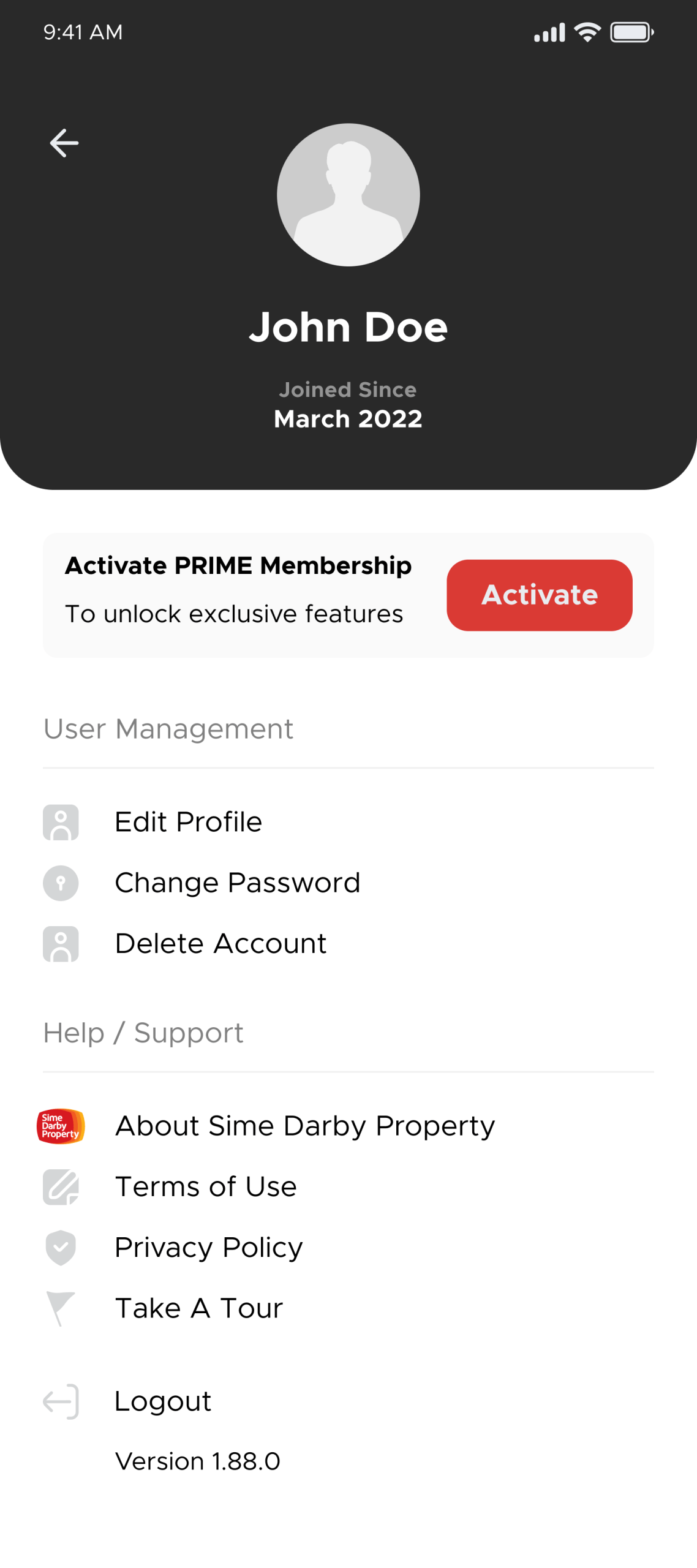
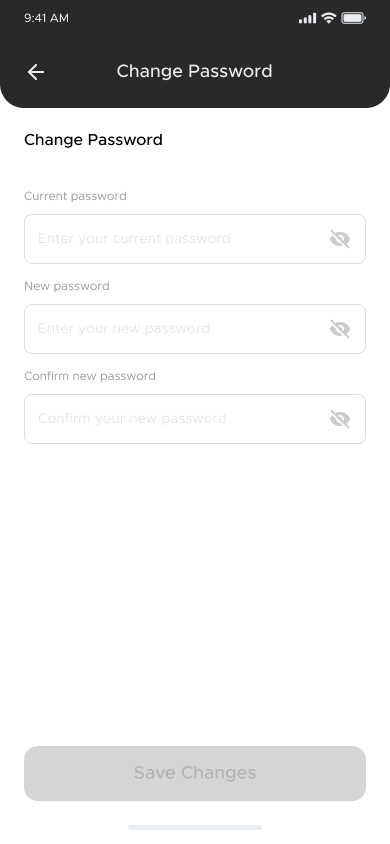
b. User will redirect to the change password page. Once user filled in the password changes, click [Save changes] to update the password.
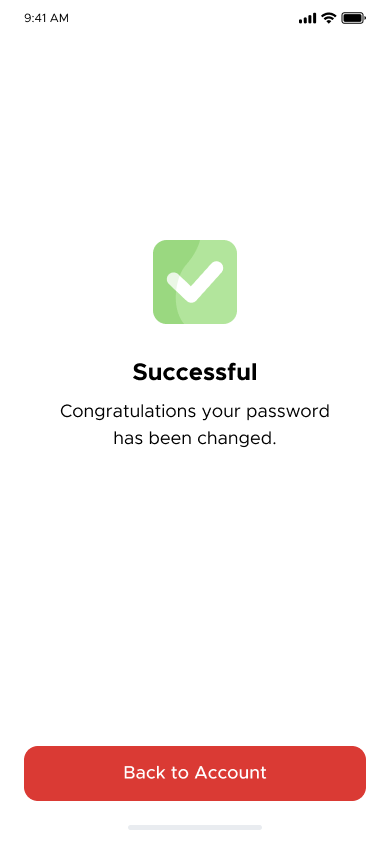
c. The successful page will appear and password update accordingly
Step 3
To delete account
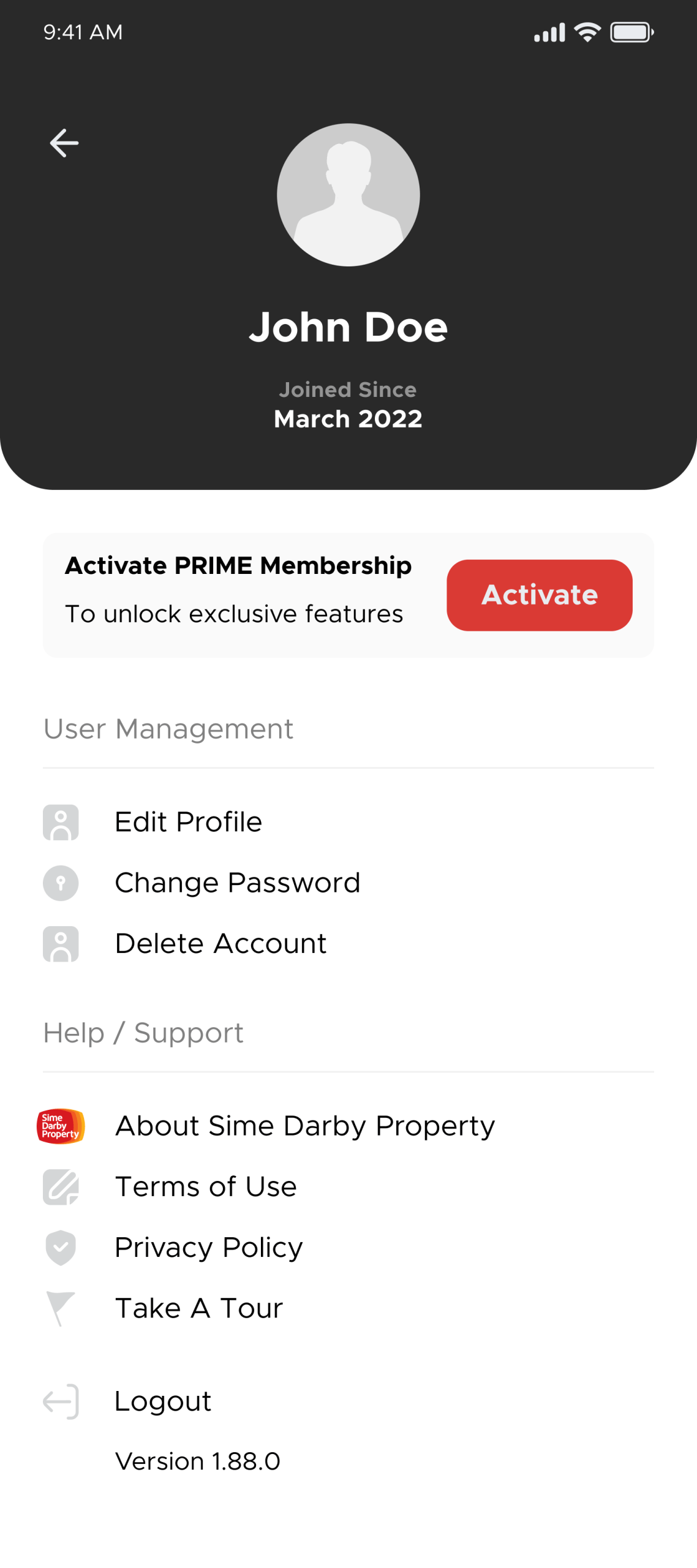
a. User clicks [Delete Account] from the User management menu
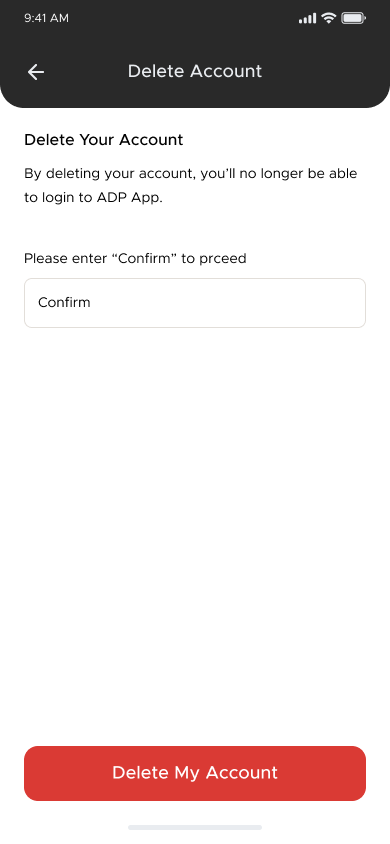
b. User redirect to the delete account page. User shall fill in the “Confirm” to proceed
c. After filled in the text accordingly, user shall click [Delete My Account] and the pop-up of confirmation appears.
d. Click [Yes, I Confirm] to proceed with the deletion
e. Click [Cancel] to not proceed with the deletion
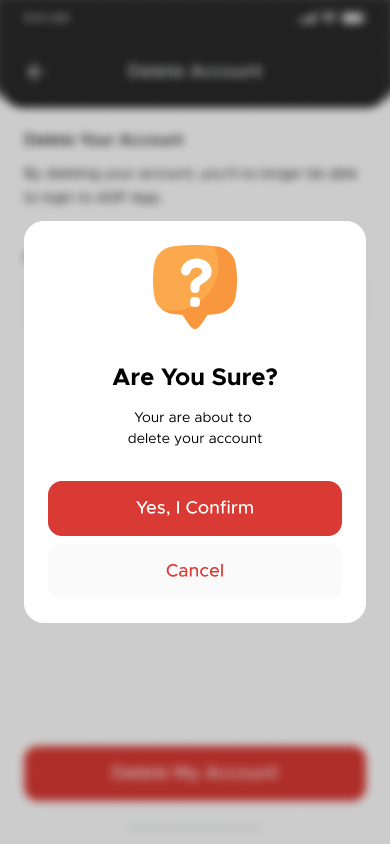
f. If user click [Yes, I Confirm] user account will delete accordingly and user will redirect to the login page
Help/Support
Objective: To access the help/support features
Step 1
To view the About Sime Darby
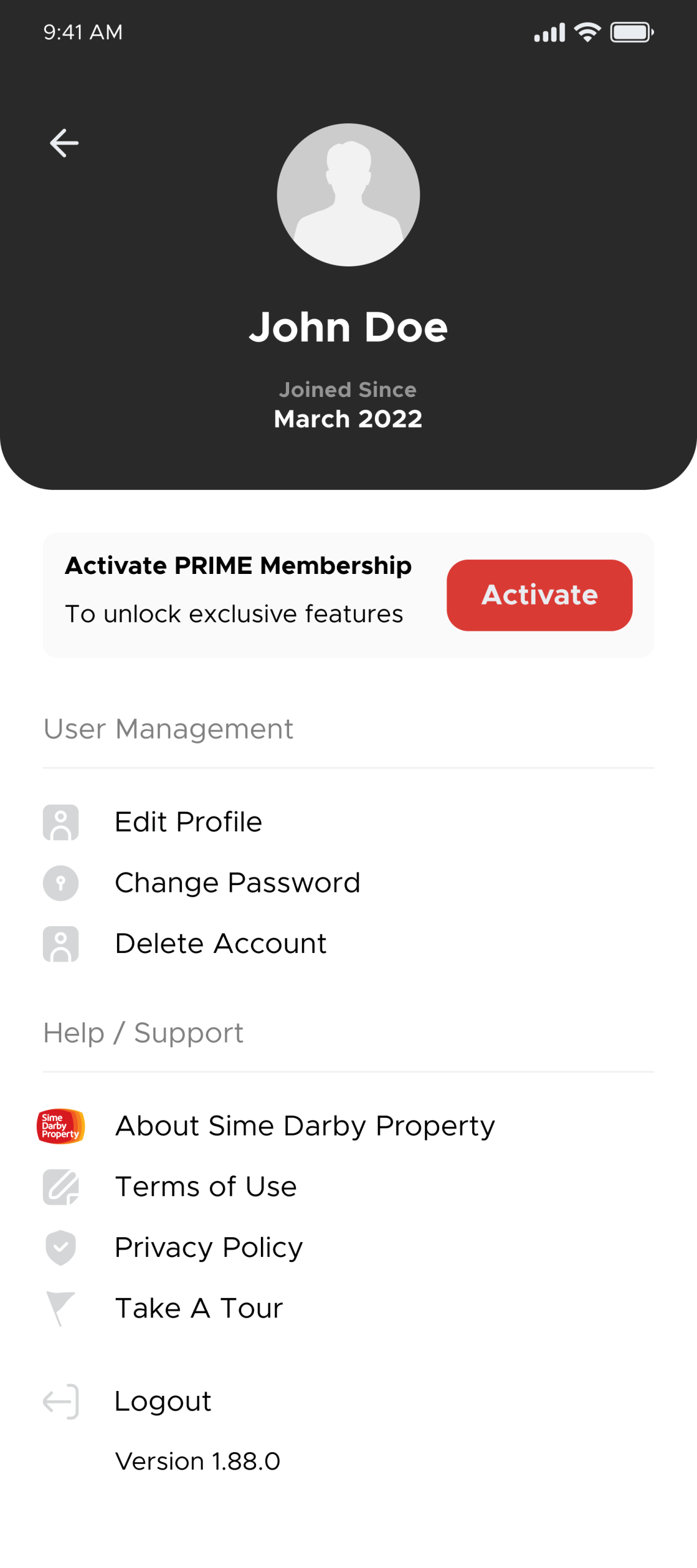
a. User clicks “About Sime Darby Property” from the Help/Support menu
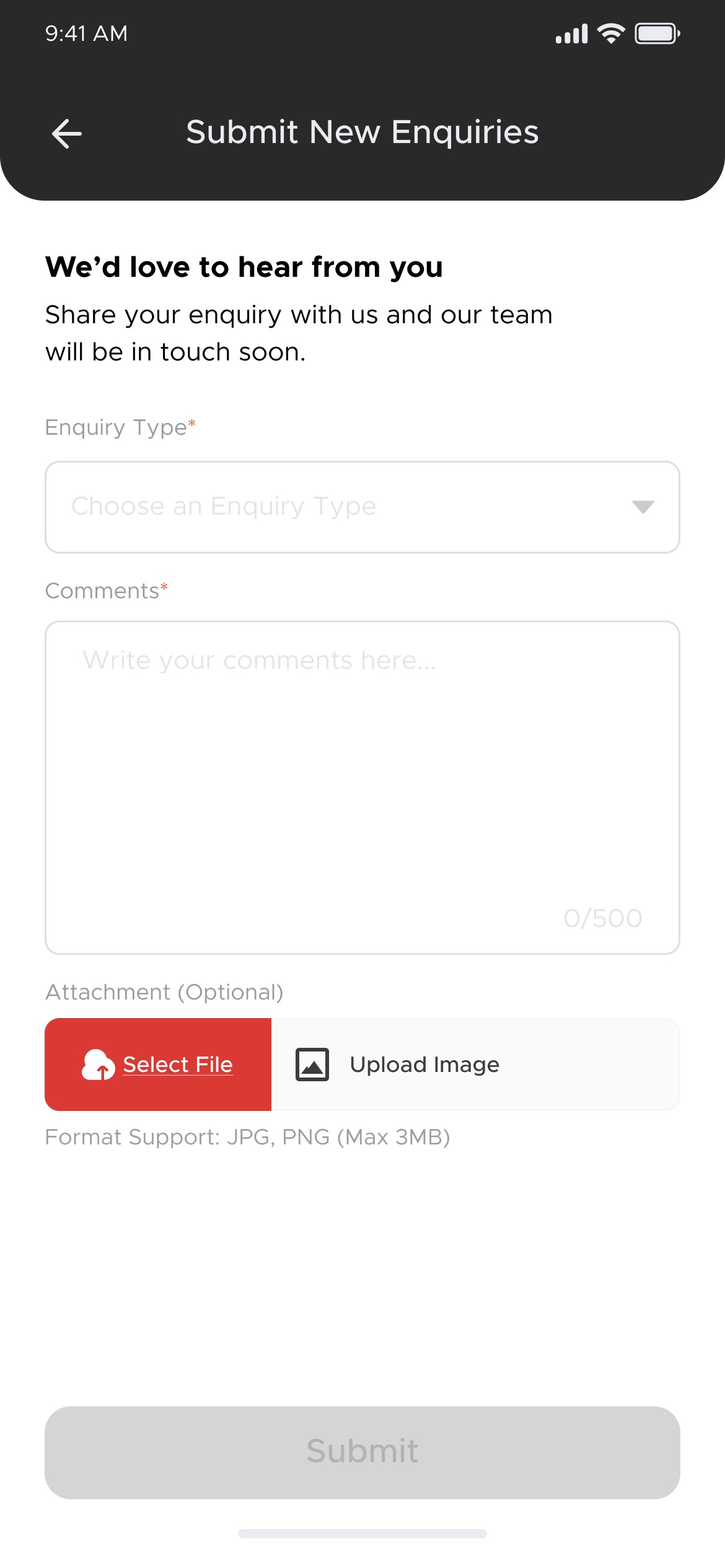
b. User shall redirect to the enquiries page
Step 2
To View Terms of Use & Privacy Policy
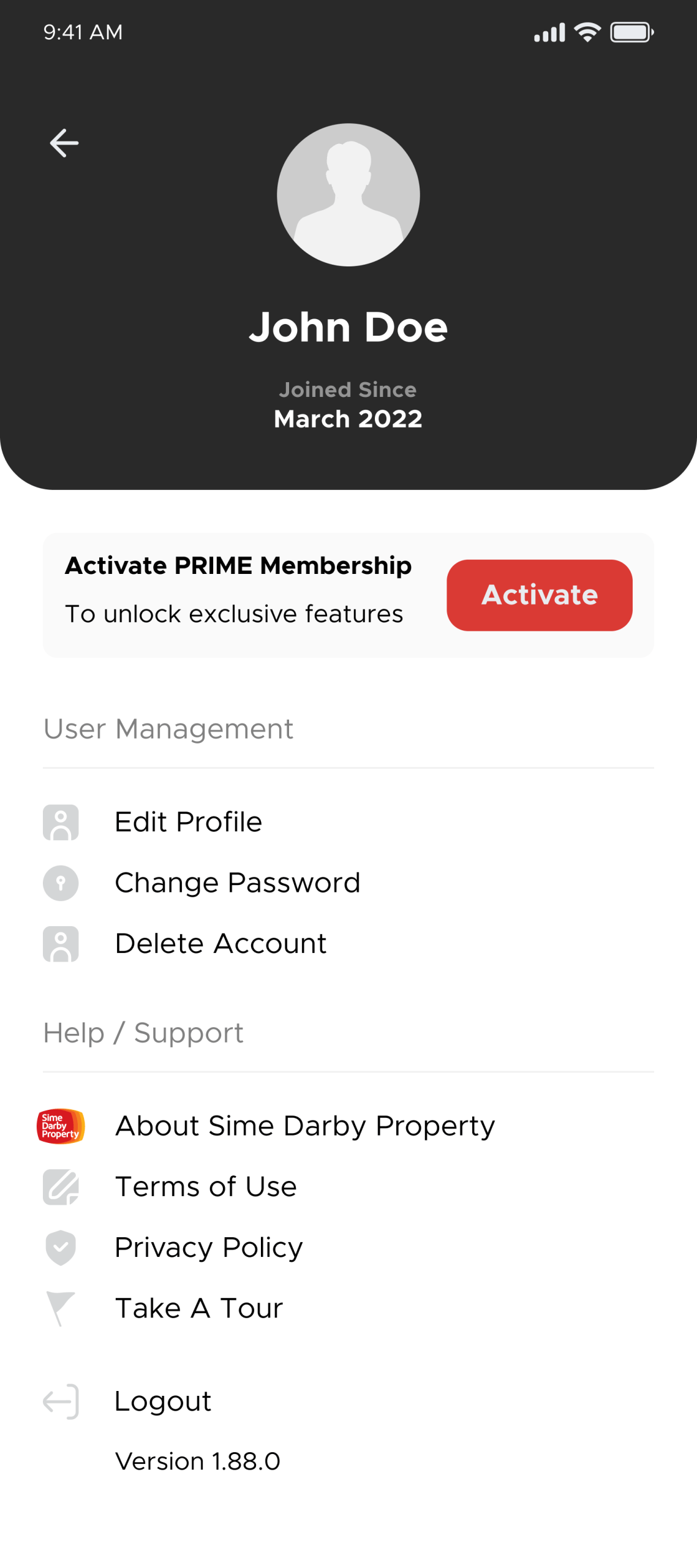
a. User clicks “Terms of Use & Privacy Policy” from the Help/Support menu
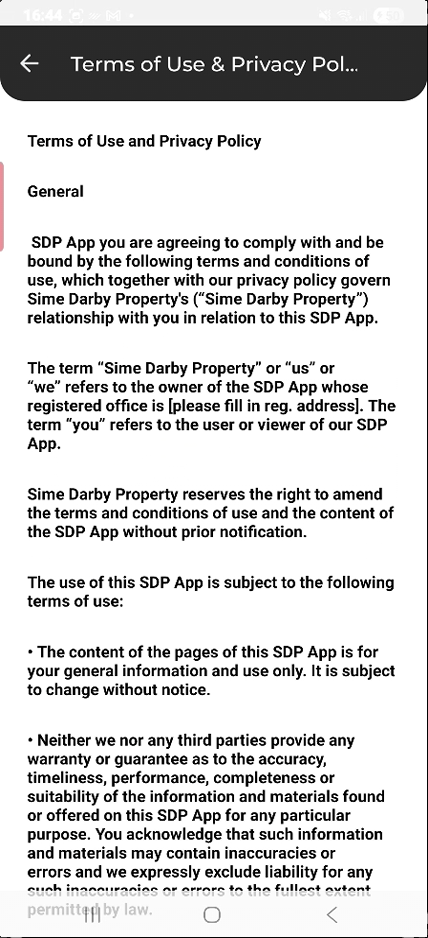
b. User shall redirect to the Terms of User & Privacy Policy page accordingly
Step 3
To view PDPA notice
a. User clicks “PDPA Notice” from the Help/Support menu
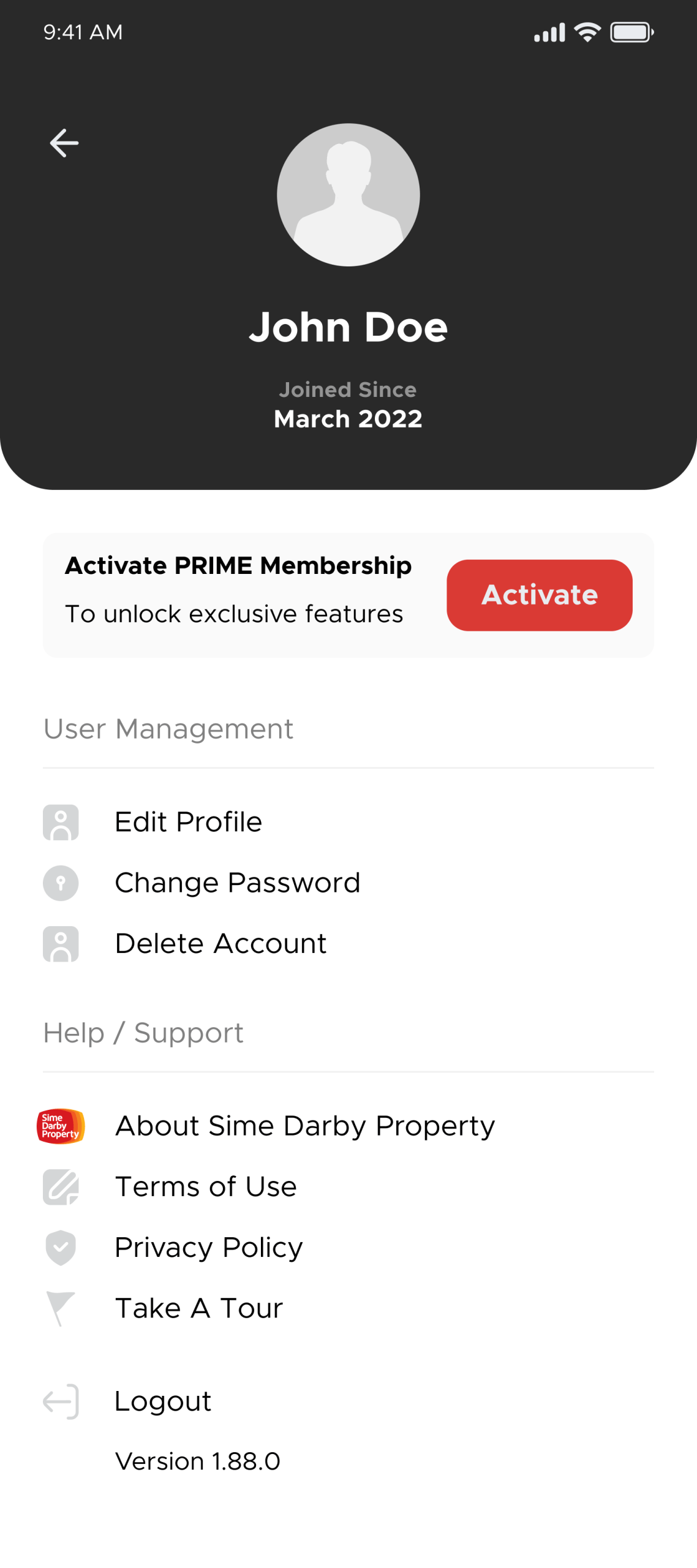
b. User shall redirect to the PDPA notice page accordingly
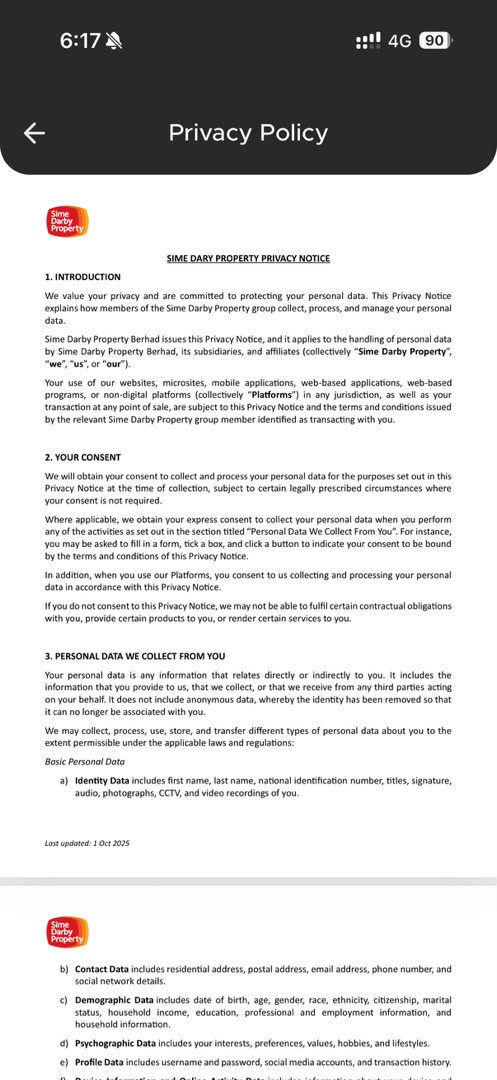
Step 4
To view the Take A Tour for Mall
a. User clicks “Take A Tour” from the Help/Support menu
b. User shall redirect to the Take A Tour page accordingly